Table of Contents
- The Old Workflow: Why Manual Conversion Hurts
- How AI-Powered Figma to Elementor Conversion Works
- Real Workflow Comparison: Manual vs. AI
- Manual Approach (3-5 Hours)
- AI-Powered Approach (15-30 Minutes Total)
- What AI Handles Really Well
- What Still Needs a Human Touch
- When to Use AI vs. When to Hire a Developer
- Try It on Your Next Project
Let me describe a workflow that most web designers and agency developers know intimately. You open your finished Figma design on one monitor. You open WordPress with Elementor on the other. And then you spend the next three to five hours doing what is essentially a manual data entry job: look at a color value in Figma, copy the hex code, paste it into Elementor. Check the padding, type '48px' into the padding field. Read the font size, set it to 18px. Read the font weight, set it to 600. Move to the next element. Repeat.
It's not creative work. It's not strategic work. It's transcription. And if you're billing hourly, it's three hours of your rate going toward something a computer could do in seconds — if the right tool existed. Well, now it does. Here's an honest look at how AI-powered figma to elementor conversion works, what it handles well, and where you still need a human brain.
The Old Workflow: Why Manual Conversion Hurts
Before we talk about AI, let's acknowledge why the traditional figma to elementor workflow is so painful. It's not because Elementor is hard to use — it's actually a great builder. The pain comes from the sheer volume of decisions you need to manually transfer. A typical landing page has maybe 40 to 80 individual elements. Each element has 5 to 15 properties: font family, font size, font weight, color, background, padding, margin, border radius, alignment, width, gap. That's somewhere between 200 and 1,200 individual values you're copying.
Figma uses Auto Layout; Elementor uses Flexbox Containers. Figma uses 'fill container' for width; Elementor uses percentages. Figma lets you nest frames infinitely; Elementor has sections, containers, and widgets with specific nesting rules. Every element requires a small translation decision, and each of those decisions is a chance to introduce a layout shift or markup bug.
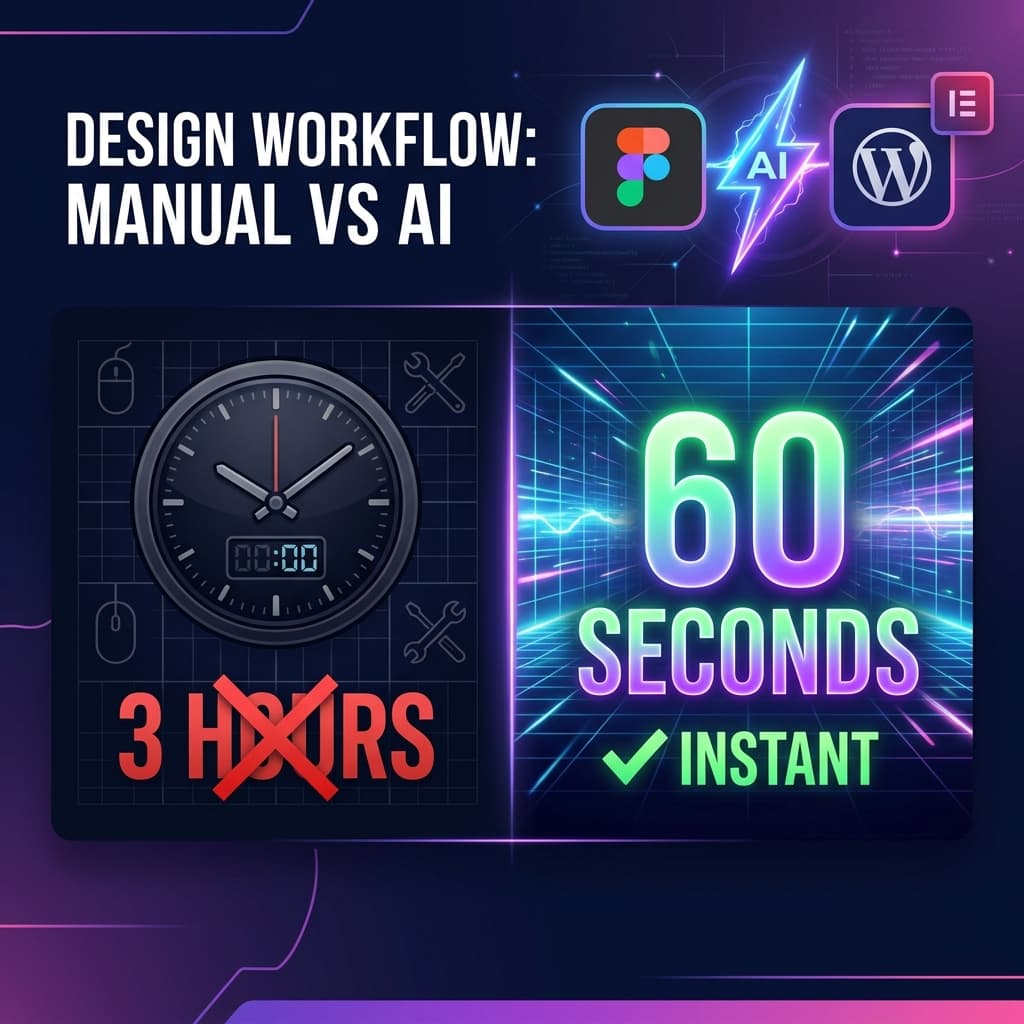
The average designer spends 3-5 hours converting a single landing page from Figma to Elementor. That's not design time — that's data entry time.
How AI-Powered Figma to Elementor Conversion Works
AI conversion tools like Figmantor work by reading the underlying JSON node structures of Figma API documents rather than screenshotting. It translates horizontal/vertical modes directly to CSS Flexbox values:
- Figma Auto Layout (Horizontal) maps directly to Elementor's Row Flex direction (flex-direction: row).
- Figma Auto Layout (Vertical) maps directly to Elementor's Column Flex direction (flex-direction: column).
- Spacing between elements translates to CSS gap constraints.
- Constraints (e.g. Fill Container) translate to flex-grow and flex-shrink settings.
For example, here is a simplified version of the raw JSON node data that Figma's API returns for a vertical card design:
{
  "id": "12:450",
  "name": "Feature Card",
  "type": "FRAME",
  "layoutMode": "VERTICAL",
  "itemSpacing": 16,
  "paddingTop": 24,
  "paddingBottom": 24,
  "primaryAxisSizingMode": "HUG"
}
The AI compiler reads this node and automatically generates the corresponding Elementor template JSON structure, mapping layout modes and spacing directly to Flexbox variables:
{
  "id": "e9a8b7c",
  "elType": "container",
  "settings": {
    "flex_direction": "column",
    "gap": { "unit": "px", "size": 16 },
    "padding": {
      "top": "24",
      "bottom": "24",
      "unit": "px",
      "isLinked": false
    }
  }
}
Real Workflow Comparison: Manual vs. AI
Let's compare the steps and time requirements between converting a standard SaaS landing page manually versus using an AI-assisted workflow:
Manual Approach (3-5 Hours)
- Inspect every element in Figma — colors, fonts, spacing, sizes (~30 min)
- Set up Elementor global styles to match the design system (~20 min)
- Build hero section — heading, subtext, buttons, background (~30 min)
- Build features grid — 6 icon boxes with individual content and styling (~45 min)
- Build testimonials, pricing table, footer section (~90 min)
- Responsive adjustments for tablet and mobile (~45 min)
AI-Powered Approach (15-30 Minutes Total)
- Select the frame in Figma, run Figmantor plugin (~60 seconds)
- Copy the generated Elementor JSON and paste into WordPress (~2 min)
- Review and tweak layout elements that need fine-tuning (~10 min)
Here is how the three main approaches compare across code cleanliness, responsive handling, and setup speed:
| Workflow Approach | Time to Complete | HTML Cleanliness | Mobile Breakpoints | Interactive Elements (Forms, Carousel) |
|---|---|---|---|---|
| Manual Coding | Slow (3-5 hours/page) | High (Developer builds semantic structure) | Manual tweaking required | Configured manually from scratch |
| AI Plugin Only | Instant (60 seconds) | Variable (Prone to code bloat) | Auto-stacked (Often buggy) | Static widgets only (No backend setup) |
| Hybrid Handoff (Figmantor) | Fast (24-48 hours) | High (AI layout + human code cleanup) | Pixel-Perfect Custom Breakpoints | Fully integrated and tested (Contact Forms, APIs, SEO) |
What AI Handles Really Well
- Color accuracy — AI reads exact hex values from Figma data instead of color-picking from a screenshot. No more '#333333 vs #2D2D2D' arguments.
- Spacing consistency — padding, margins, and gaps are pulled directly from Auto Layout values. Every container gets the exact numbers from the design.
- Typography mapping — font families, sizes, weights, and line heights are all extracted systematically. The AI also handles Google Fonts mapping automatically.
- Layout structure — the hierarchy of sections → containers → widgets is determined by reading Figma's frame nesting, which maps cleanly to Elementor's container model.
What Still Needs a Human Touch
AI conversion alone has gaps. Complex features like active contact forms, dynamic custom fields, database hookups, WooCommerce product loops, and search queries require WordPress-specific configurations that live outside the layout. Furthermore, custom animations (like scroll reveals or fancy hover transitions) still need manual setup in Elementor's motion panels.
To ensure your design conversions look and perform flawlessly, use this 4-step Figma preparation checklist:
- 1. Enforce Auto Layout: Avoid absolute coordinates; use relative alignment grids.
- 2. Define Your Styles: Link all color hexes and fonts to global Figma styles.
- 3. Componentize Repeating Elements: Create reusable components for buttons, inputs, and cards.
- 4. Clean Up Layers: Delete hidden drafts or empty frames to prevent layout bloat.
When to Use AI vs. When to Hire a Developer
Use an AI converter when you have a clean, well-structured Figma file and need a fast layout conversion. It is perfect for static pages, blog layouts, and simple marketing headers.
Hire a developer when the project involves dynamic logic (membership portals, e-commerce, forms), custom plugin development, or when you want optimized SEO schema structures and optimized DOM tree depths.
At Figmantor, we combine the best of both worlds. We use our custom AI engines to generate structural code at lighting speed, and then our expert developers manually refactor the layout containers, clean CSS classes, configure responsive tablet/mobile breakpoints, and set up forms/scripts. This gets you premium developer-quality sites at half the cost and time.
Try It on Your Next Project
If you want to speed up your layout pipeline, try out the Figmantor Figma Plugin which offers a generous free tier for static section exports.
If you'd rather delegate the whole build to professional WordPress developers who guarantee clean semantic markup, custom plugin setup, and pixel-perfect responsiveness, message us on WhatsApp now. Share your design files or wireframe guidelines, and we'll get back to you with an honest proposal and quote in under 12 hours.
Related Articles
How to Convert Figma to Elementor WordPress — Complete Guide 2026
Learn the complete step-by-step process for converting Figma designs into pixel-perfect WordPress Elementor websites. Covers design audits, asset optimizations, containers, and QA.
ShowitFigma to Showit: Build Stunning Showit Websites From Your Designs
Discover how to transform your Figma mockups into beautiful, drag-and-drop Showit websites. Learn the custom canvas settings, mobile-first design, and WordPress blog styling.